
AI Face Aging - Photo Editor
Willson StudioPhotography
4.062.00 Reviews
- Version
- 1.1.1
- Installs
- 5.00M
- Age Rating
- Everyone
Screenshots
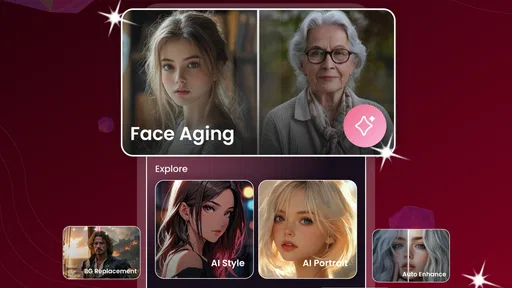
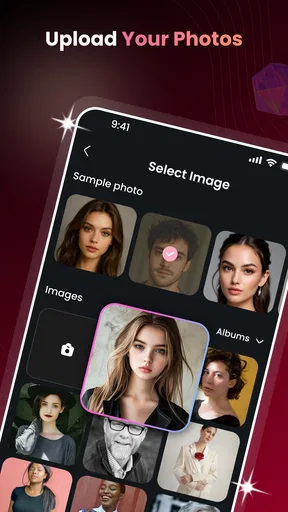
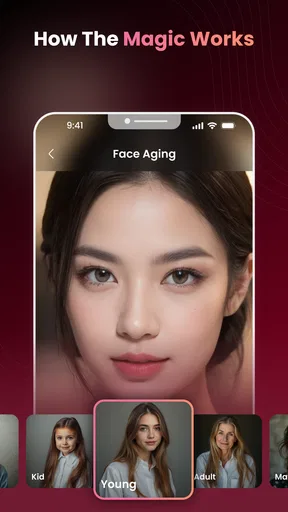
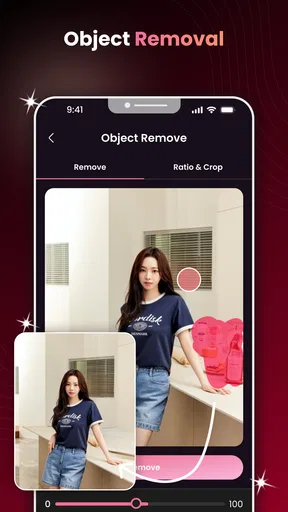
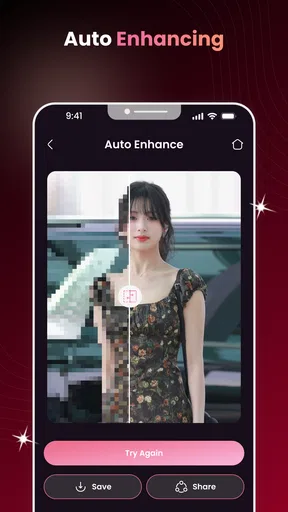
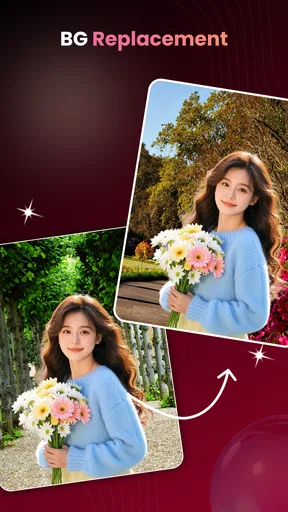
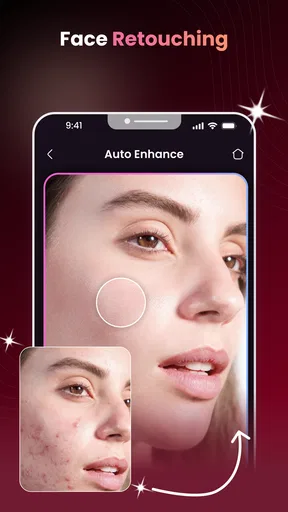
Our Review of AI Face Aging - Photo Editor
 Analysis by Appyee
I like photo apps that let me try an idea quickly, but face-aging effects can look awkward when a portrait is poorly lit or the face is turned away. AI Face Aging - Photo Editor is a photography app by Willson Studio built around aging and face-swap edits. Its appeal is straightforward: start with a portrait, try an age-related transformation, and decide whether the result is fun or convincing enough to keep. I would approach it as a casual creative tool, not as a dependable way to predict how anyone will look in the future.
Start with a portrait that gives the edit a fair chance
The baseline workflow is simple in concept: choose a face-focused photo, apply an aging effect, then judge the result before sharing it. That simplicity is useful when you want a quick experiment rather than a full editing session. It also means the original photo matters a lot. A clear, evenly lit face gives an image editor a better starting point than a shadowy group shot, a tiny face in the distance, or a portrait where hair or a hand covers key features.
For a first try, I would use a recent, front-facing portrait with a neutral expression. Keep the face large in the frame and avoid strong filters that have already changed skin tone or facial detail. This is not a magic formula, but it reduces the chance that the effect has to work around competing visual information. If the first result looks strange, changing the source image is often a more useful next step than repeatedly applying the same treatment to a difficult photo.
A realistic everyday use is a relaxed group chat moment: a friend shares a clear selfie, and you make an older-looking version as a playful comparison. The result works best when everyone understands it as a visual joke, not a serious forecast. For a family photo, I would first keep an untouched copy and use the edited version only where it is welcome. That small habit makes it easy to enjoy the experiment without losing the original or confusing the edit with the real image.
The app’s store summary also mentions face swapping, so there is room for a second kind of playful edit alongside aging. I would treat the two ideas differently: aging is a transformation of one person’s appearance, while swapping depends on the faces and source images involved. A clean, well-matched pair is a better starting point than a mix of different angles and lighting. Either way, use photos you have permission to edit and share; a technically amusing result can still feel uncomfortable if the person pictured did not agree.
Choose the image before chasing the effect
Experienced users can make the process more repeatable by keeping a small mental checklist: face visible, enough light, little obstruction, and a crop that leaves the face prominent. I would change one thing at a time when a result disappoints. Try a clearer portrait before changing the style, or use a more neutral expression before deciding that the aging effect itself is the problem. This makes it easier to learn what the app handles well instead of treating every result as random.
It is also worth comparing the edited image with the source at the same viewing size. A close-up can make a minor texture change seem dramatic, while a small preview may hide uneven edges or details that look unnatural when enlarged. If the picture is intended for a message or social post, inspect it at roughly the size people will see it there. If you are considering a print or a formal keepsake, a playful aging filter is a less suitable final-editing tool than a conventional photo editor that gives you more control over retouching and output.
Check the practical details before making it a habit
AI Face Aging - Photo Editor is free, rated Everyone, and currently at version 1.1.1. It has a 4.0 average from around 6,500 ratings, with about 62 written reviews and over 5 million installs. Those figures suggest that many people have tried it, but they do not tell me whether a particular edit will suit your photo. I would use the first session to see how the effect behaves on an image you are comfortable experimenting with, rather than assuming a popular app will produce a polished result every time.
The app was released on February 3, 2026, and its minimum operating-system requirement is version 8.0. That makes device compatibility worth checking before you plan a session, especially if you are using an older phone or tablet. I would also check the current app-store page for the precise device requirements and any current installation notes before downloading. The important practical point is to confirm compatibility first, then test a single portrait before building the app into a regular editing routine.
One useful setting habit is to pay attention to the photo you select and any options shown during the editing flow, rather than tapping through automatically. If the app presents choices for an effect, compare them on the same source image so that you can tell what actually changed. I would avoid assuming that a label alone guarantees a realistic look: facial structure, lighting, expression, and crop all shape the outcome. This is a better way to evaluate the tool than judging it from a single unusually flattering or unusually poor example.
Another sensible check is how you want to handle the finished image. Before sharing, look for obvious mismatches around the face and hairline, and ask whether the person pictured would be comfortable seeing the result circulated. If the edit is only for a private laugh, there is little reason to treat it like a carefully retouched portrait. If you want to post it publicly, a second look at both the image and the audience is worthwhile. The app makes experimentation accessible; it cannot decide whether a particular joke or transformation is appropriate.
Build a faster, more consistent routine
Once you have found a portrait that works, keep the original nearby and use it as a reference when trying another effect. A repeatable routine could be: select one clear photo, make one edit, inspect the result at full viewing size, then decide whether to save or discard it. This avoids producing a pile of near-identical versions that are difficult to compare. It also helps you notice whether a change improved the image or merely made it different.
For friends or family who want to compare results, use portraits with similar framing and lighting. That makes the comparison feel fairer and keeps the discussion focused on the aging effect rather than on one photo being brighter or closer than another. I would not use the routine to rank people’s appearances; the useful comparison is between edit approaches, not between faces. If the app’s available choices do not give you the result you want, stop there rather than forcing a filter onto an unsuitable photo.
Shortcuts do not have to mean hidden controls. A good shortcut is preparing the right source image before opening the editor: crop out distractions, choose a well-lit frame, and keep a clean original. Another is deciding in advance whether the goal is a funny image, a visual experiment, or something you may share. Those intentions call for different standards. A comic transformation can tolerate exaggeration, while an image meant to look plausible deserves a more careful review and may be better handled in a broader photo editor.
I would also keep expectations consistent across sessions. If you change the portrait, lighting, crop, and effect all at once, it becomes hard to tell why the output looks better or worse. For a quick personal test, that may not matter. For someone making several versions for a collage or a group activity, changing one variable at a time gives clearer comparisons and saves time. The app’s focused purpose is its strength here, but it also means the workflow is best kept simple rather than treated as a complete photo-production pipeline.
Where the focused approach reaches its limits
The main trade-off is control. A dedicated aging or face-swap app is appealing when you want a quick, themed result, but it is not the same as a general editor with detailed control over exposure, color, blemish cleanup, layers, and composition. If your goal is a polished headshot, a consistent family album, or a carefully retouched image, I would use a conventional photo-editing app instead. The narrower tool is more convenient for a fast experiment; the broader one is better when the picture itself needs deliberate, precise work.
There is also a difference between a convincing-looking effect and a trustworthy prediction. An aging edit is an artistic transformation, not evidence of how a person will actually change. Facial appearance is shaped by many things that a filter cannot know from one photo. I would not use the result for medical, identity, or other consequential decisions, and I would be cautious about presenting it as a genuine forecast. That limitation does not spoil the fun; it simply defines the sensible use case.
Face swaps have their own boundary: the output may be entertaining while still looking visually mismatched. Differences in head angle, lighting, expression, or image quality can make a result feel pasted together. If you want a natural composite, careful manual editing may serve you better. If you just want a quick gag among consenting friends, a little imperfection is often part of the appeal. The right choice depends on whether you value speed and amusement or fine-grained realism.
Since the app is free, it is easy to try without committing to a paid purchase. I would still make the decision based on the experience rather than on the word “free”: check the app-store details before installing, make sure your device meets the minimum requirement, and test with a photo you are comfortable using. If your main need is everyday photo organization or broad editing, this is probably too specialized to replace your usual tools. If your main interest is aging-style transformations and occasional swaps, its focused purpose is a more natural fit.
Who will enjoy it, and who should move on
I can see this app suiting people who like quick visual experiments, want a lighthearted activity for a chat, or are curious about how a face-aging effect changes a familiar portrait. It is especially practical for someone who prefers a direct, photo-led workflow over opening a full editing suite. Willson Studio has kept the product in the photography space, and its focus is easy to understand: get a face image, try a transformation, and decide whether the result is worth keeping.
I would skip it if you need reliable portrait retouching, precise control, or a realistic projection of someone’s future appearance. I would also look elsewhere if your first priority is a complete editor for correcting lighting, refining color, and preparing professional-looking images. These are not failures of an aging-focused app; they are simply different jobs. Choosing the right tool saves more time than trying to make a narrow effect editor behave like a full production workspace.
My verdict is that AI Face Aging - Photo Editor is best treated as a casual creative tool with a clear boundary: it can make a portrait more playful, but the source image and your expectations determine whether the result feels successful. Start with a bright, unobstructed face, keep the original, and judge the finished image at the size you plan to share. If you approach it that way, the app is easy to evaluate and can be enjoyable without overpromising what an aging filter can do.
For me, the smartest way to use it is in short, intentional sessions: pick a photo that suits the effect, make a small number of comparisons, and stop when the image is amusing or useful enough. Its free availability and Everyone age rating make trying it straightforward, while its focused nature makes it a poor substitute for broader editing needs. I would recommend it to a friend who wants a quick aging experiment or a playful swap, with the honest caveat that a fun transformation is not the same thing as a polished portrait or a prediction.
Privacy and Permissions
See what permissions an app requests and how it handles your data.
- Photos/Media/Files
- read the contents of your USB storage, modify or delete the contents of your USB storage
- Storage
- read the contents of your USB storage, modify or delete the contents of your USB storage
- Camera
- take pictures and videos
- Microphone
- record audio
- Wi-Fi connection information
- view Wi-Fi connections
- Other
- view network connections, full network access, prevent device from sleeping, Google Play license check
Verdict
Strengths of AI Face Aging - Photo Editor
- Simple controls make age transformations quick to create.
- Works with portraits from the camera or photo gallery.
- Aging effects can make sharing photos more entertaining.
- No editing expertise is needed to try the main effects.
- A useful option for playful before-and-after comparisons.
Limitations of AI Face Aging - Photo Editor
- Results can look artificial when the source photo is unclear.
- Facial details may change unpredictably between transformations.
- Some features may require payment or a subscription.
- Photo uploads can raise privacy concerns for cautious users.
- The app's usefulness is limited if you rarely edit portraits.
Similar Picks in This Category
View All
Google Photos
Google LLC4.4

Gallery
Google LLC4.2

Picsart AI Photo Editor, Video
PicsArt, Inc.3.9

B612 AI Photo&Video Editor
SNOW Corporation4.1

BeautyPlus-Selfie Photo Editor
PIXOCIAL TECHNOLOGY (SINGAPORE) PTE. LTD.4.5

Remini - AI Photo Enhancer
Bending Spoons4.1
Frequently Asked Questions
What can you do with AI Face Aging - Photo Editor?
AI Face Aging - Photo Editor is designed to transform a portrait with age-related effects, letting you preview a possible older appearance or explore other facial-style changes offered by the app. Results are generated from the photo you provide, so the effect is best treated as entertainment rather than a reliable prediction of how you will look in the future. Available tools and filters may vary by version.
How do you create an aging effect with the app?
Typically, you select or take a clear face photo, choose an aging effect, and let the editor process the image before viewing or saving the result. A front-facing portrait with good lighting and an unobstructed face is more likely to produce a recognizable edit. The exact steps and options can differ between app versions, so check the on-screen instructions and review the image before sharing it.
Is AI Face Aging - Photo Editor free to use?
The app may be available to download without an upfront charge, but that does not necessarily mean every feature is free. Some versions of photo-editing apps include advertising, optional purchases, subscriptions, or limits on particular effects. Check the current store listing and the prices shown inside the app before starting a trial or confirming a purchase. Subscription terms and available features can change over time.
Does the app upload or store the photos you edit?
Photo handling depends on how the current version processes images and on the developer's privacy practices. Before choosing a photo, read the app's privacy policy and the data-safety information in the Google Play or App Store listing. Look for details about uploads, retention, sharing, and deletion, and avoid using sensitive images if you are uncertain. Do not assume that editing a picture means it stays only on your device.
Can you share or use the edited images outside the app?
Edited images may be saveable to your device or shareable through other apps, depending on the features and permissions available in your version. Review the result before posting, especially if it includes another person's face, and get their permission when appropriate. Also consider that an AI aging effect is a creative edit, not evidence of someone's real appearance or future health, and label it clearly when context could be misleading.
